The Influence database was developed in a programming environment called KCML.
In order to run the database you will require a valid KCML License installed on the machine/server where the database is hosted.
The KCML licence is linked to several hardware and system attributes of the database server which combine to form the Machine ID.
The Machine ID is tied to several key identifiers of the database server. If you move the database to a new Server, or Virtual Server then it is likely the license will become invalid and you will require a new KCML license.
In cases of hardware failure or where it has been necessary to move the database at short notice without time to plan the move, and organise a new license there is a process to generate an Emergency License. This is a temporary license which lasts for 5 days (not 5 business days), providing time to organise/arrange a new licence for the new server.
TABLE OF CONTENTS
The article below explains how you can obtain an Emergency KCML License (KCML7) using the licensing tool.
IMPORTANT NOTE This process is only relevant to Influence CRM customers, using the Influence software / Recruitment database. It is NOT applicable to Kerridge Autoline customers in the Automotive industry. If you are an automotive customer, please contact your Kerridge dealer, or approach KEYLOOP directly to enquire about an emergency licence. |
STEP 1
You will need to locate the existing licence file (lic.txt) on the database server and obtain the SERIAL NUMBER from the Licence, as you will need this later. It is likely to be found in the location where Keyloop/KCML is installed or possibly where the Influence folder is installed. For example:
C:\Program Files (x86)\Keyloop\KCML
?:\Influence\ADP\KCML (where ? is the drive letter where KCML is installed to, e.g. D)
Having located the lic.txt file
1a) Keep a SAFE copy of this - i.e. Copy the file to another folder or drive (not the desktop).
1b) Open the lic.txt file using notepad/word pad and make a note of the Serial Number as this will be required later.
| TIP: The path might be 'CDK' or 'Keyloop' rather than 'ADP' - you can always use Windows to search for the file lic.txt to help find the path if you need. |
Example of lic.txt serial number (below)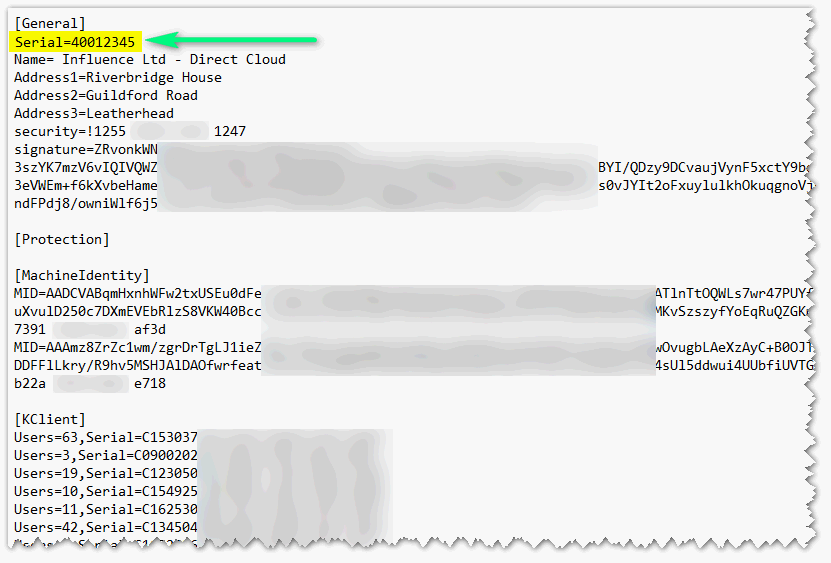
STEP 2
Run GetID on the location where the Influence folder is installed. To run getid.exe you will need to do this via Command Prompt as the 'Administrator' from one of the following locations (depending on where getid.exe is located).
2a) C:\Program Files (x86)\Keyloop\KCML
2b) ?:\Influence\ADP\KCML (where ? is the drive letter where KCML is installed to, e.g. D)
OR
2c) You can download the 'getid.exe' file using the link below on the database server and ensure to run via Command Prompt as the Administrator (on the database server):
CLICK HERE TO DOWNLOAD 'getid.exe' -> https://influence-it.co.uk/downloads/
| TIP: The path might be 'CDK' or 'Keyloop' rather than 'ADP' - you can always use Windows to search for the file lic.txt to help find the path if you need. |
Running the command via CMD:
Once you have located getid.exe or downloaded it on the database server, you will be able to open Command Prompt with Windows Administrator, run the getid.exe command then copy the new machine identifier displayed into a .txt file.
Examples of running GetID
If you have downloaded GetID from the Influence Downloads page https://influence-it.co.uk/downloads/

If after running GetID you encounter the message below, click [Close program] and proceed further as the new Machine ID would have been generated via command prompt.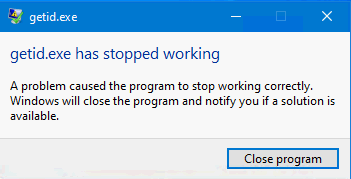
STEP 3
You will now need to login to the KCML licensing site known as the Keyloop Customer Hub (portal), to generate and obtain an emergency license.
Select any of the links below to access the portal.
https://online.keyloop.com/
https://service.keyloop.com/
If you do not have a login, [Register] to create a new account via the portal.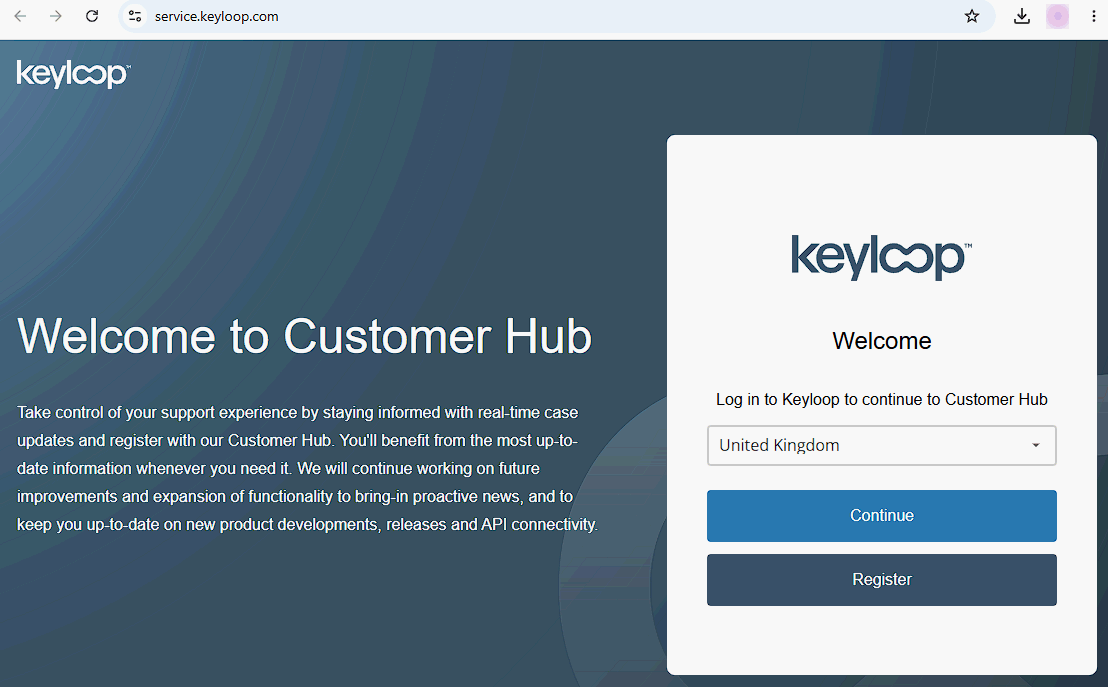
| NOTE: If you need to register for an account, you must use a corporate email address (free addresses such as ... @gmail.com or ... @outlook.com will not work). |
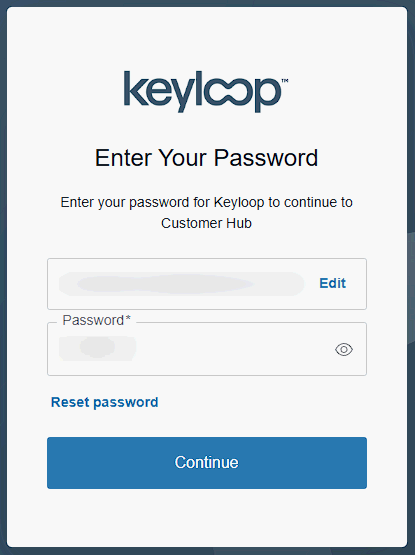
An example of the login screen is shown below, after entering your email address, you will be prompted to enter your password as shown below: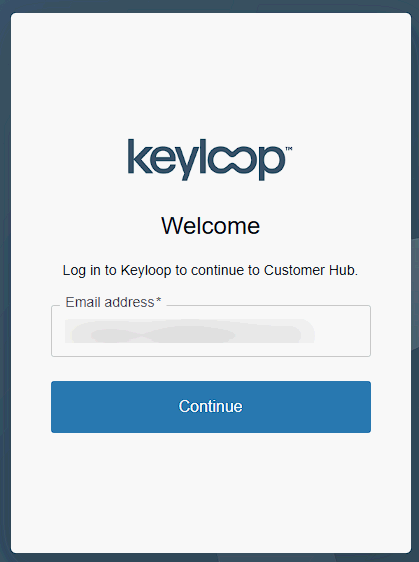
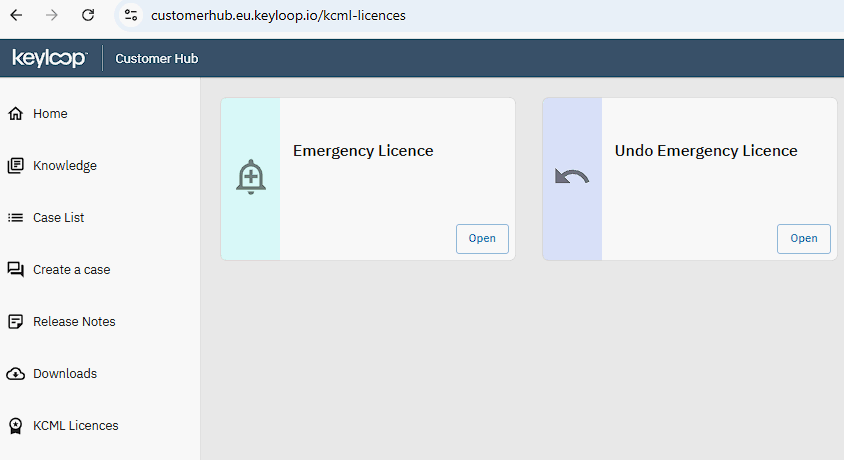
Once you have logged into the Keyloop portal, select KCML Licences (to the left) then click the [Open] button on Emergency Licence.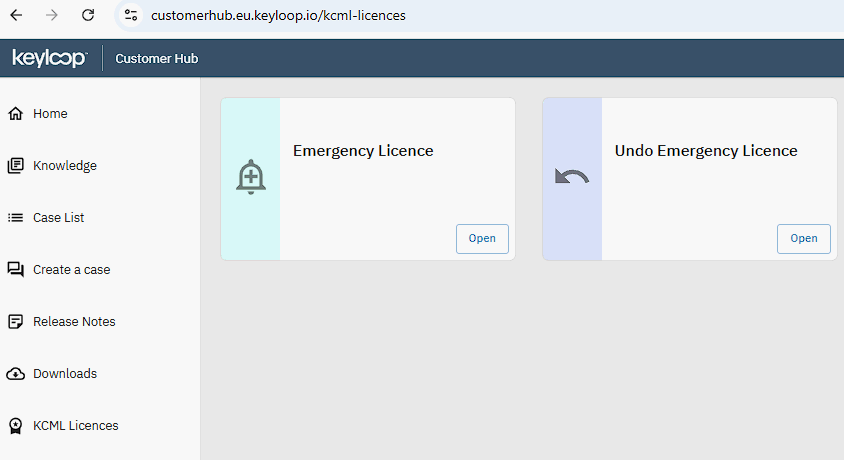
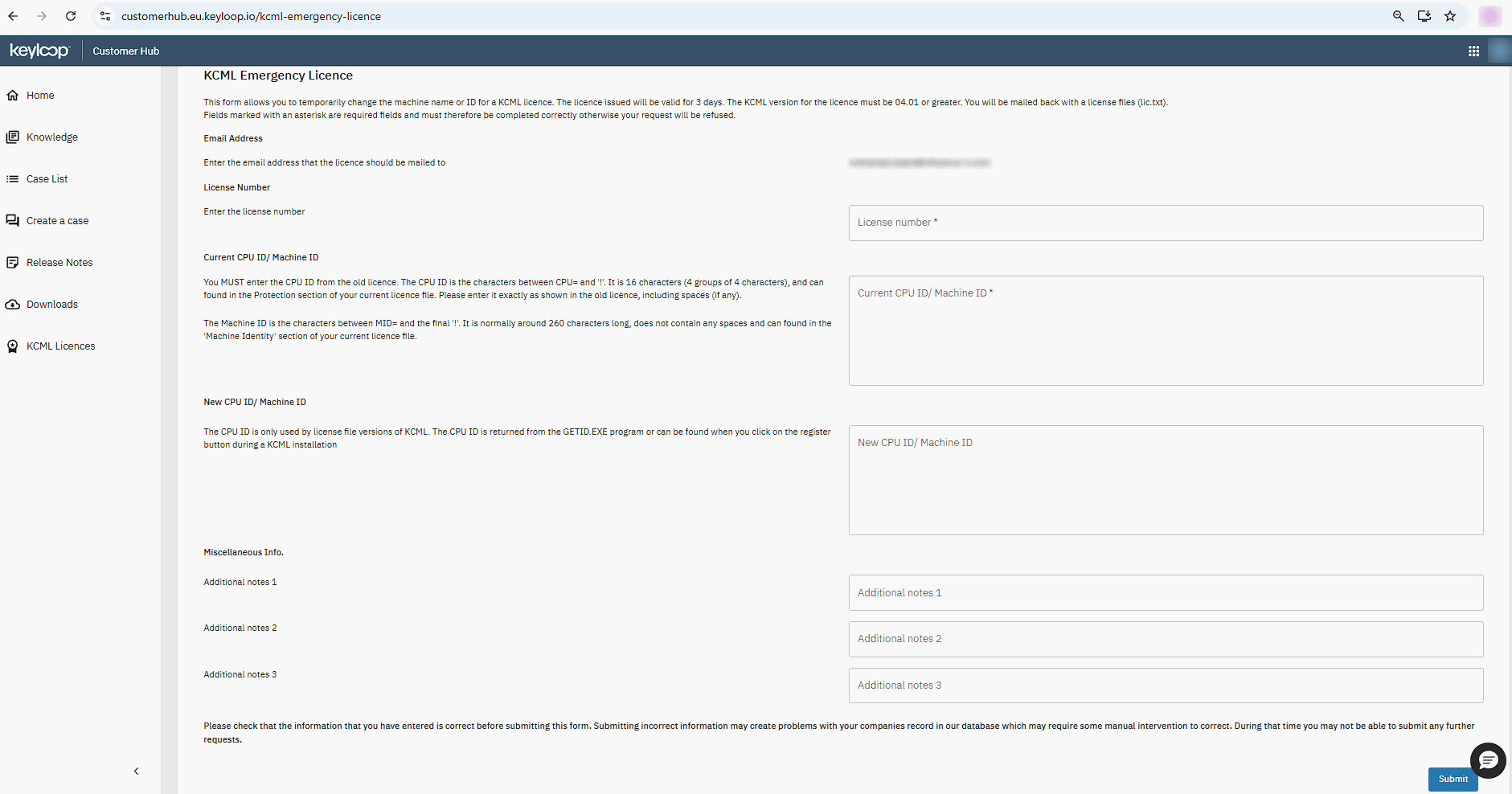
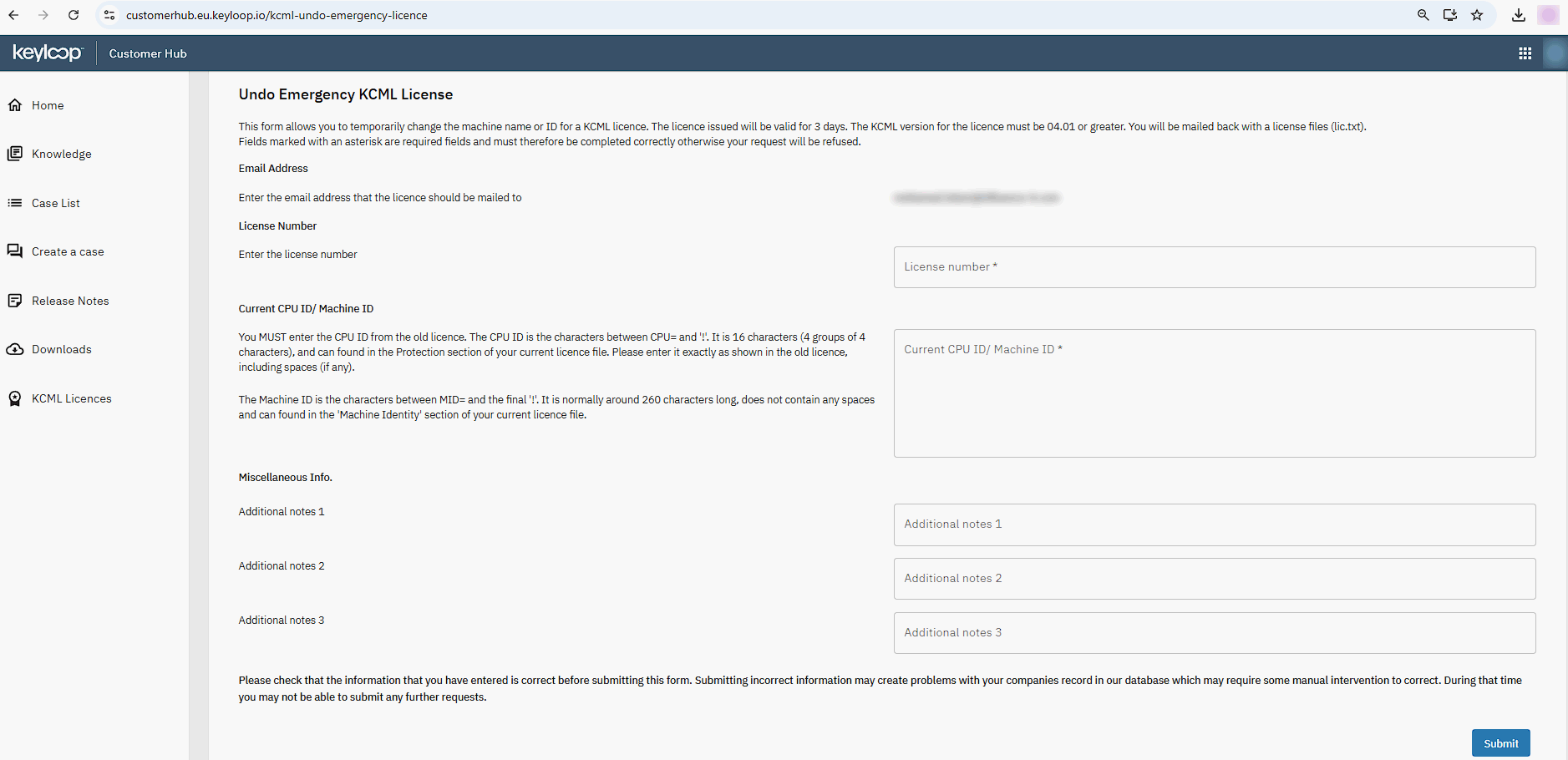
Paste the old licence CPU ID (or Machine ID) and the new Machine ID generated via GET ID. The old identifier can be found from the lic.txt file which is in Keyloop\KCML or ADP\KCML folder.
When completing the license request the License Number is the Serial Number you noted in Step 1 above.
(download or open image below in a new tab to zoom in)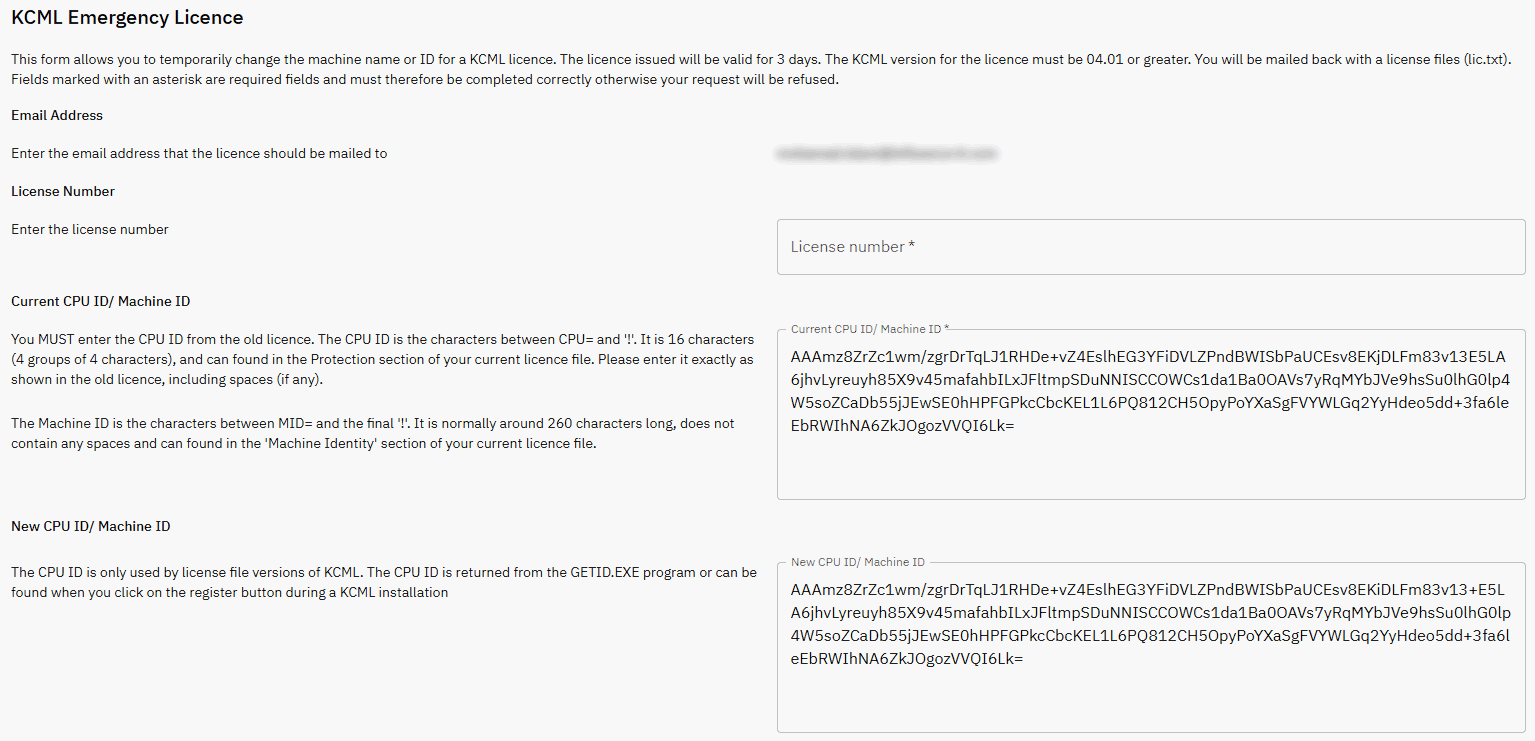
IMPORTANT:
When you are copying the MID (Machine ID) from a licence file you should not copy the whole string you need to miss off the MID= at the beginning and the last 20 characters (the security portion of the ID from the ! symbol onwards).
SEE BELOW FOR EXAMPLE OF THE SECTION YOU MUST COPY.
MID=s1YqD10nPUE29Mxc6ScyONBrh7QVWeXa0HmwYq37e0qXWqzZm3rZWITIcAdDfINyXipCIloWaN7WoT8Wp0bBrE3YR6QDfcHM9Uhu6pJjXGxRsXUdfEC8vEuCZzntKmVQ/hlQ60CQhtwnTdOntgjccx9XLGVTek3hvBoMPEJwE7TA3bU8yDQYMegGzBRLXM4tWSej26GnjY8Bwwhof7nIyecTGbQlsb5obSvZIqNoq42lkg1178GOFiXedLzOkTh151sdUmm7/8NqmnciYHuRSTmfLon0m1JLm9GpuRdLQu72rBbx6PDeM072XdDuYovR4NQZTVTrxJKp7wkrzL7JIJnThallUQE5zicXpYxgFPnk3ZdfaMPsgcGzFgtIh4g32DbNDkHUE=!e4c9 b887 c998 6e9b
IMPORTANT: The emergency licence lasts for 5 days only (not 5 business days). Send the emergency identifier (new Machine ID) over to Influence (support@influence-it.com) and we will update your current licence file.
Once you have submitted your request for the Emergency Licence it will be processed, and you will receive an email immediately with the license. this will be sent to the email address you used to register via the Keyloop portal.
If the Process Fails or You Need to Revert Back
If you need to revert back to the old server for any reason you will need to navigate to the Keyloop Portal and Undo Emergency Licence.
Similarly, if you do not receive the Emergency Licence or cannot locate it in your emails, you will need to undo the emergency licence request before you can re-request.
Remember - you cannot request Licences from 'personal' or 'Free' emails such as xxxx@gmail.com or xxxx@outlook.com
Open the Keyloop portal, select KCML Licences (to the left) then click the [Open] button on Undo Emergency Licence.

Was this article helpful?
That’s Great!
Thank you for your feedback
Sorry! We couldn't be helpful
Thank you for your feedback
Feedback sent
We appreciate your effort and will try to fix the article