The latest version of the Influence Professional software has an improved ability to move a contact from one site to another.
When moving a contact it is possible to see the history of previous journals (emails/telephone conversations) that you have had with that contact at their previous employers. This facility is only available in systems from v1.00.12.247 or later.
Contents
TABLE OF CONTENTS
1) How to Move a Contact to a New Client/Site
Often contacts move from one company to another. Moving a contact to another site (client) is a simple process
STEP 1
Use the companies workbench to find the site where the contact currently works, then double-click on their record to open their contact details form.
STEP 2
On the Contact Details page you will see a [Move] button. Click this and the system will display a window from which you may choose the Company. Enter the company name then press [... ] and the system will display a list of existing companies for you to choose.
| (NB: If the firm they have moved to does not already exist in the database then you may use the [New Company] button at the bottom left to create a new firm.) |
STEP 3
Optional
You may choose to record reasons why they have moved to the new site. Press [OK] to move the contact to the new site.
Once completed the contact will show on their 'old' firm with an importance of "Left Company" and will now show on their new employer.
Opening their contact record will allow you to choose the 'History' page which will then show details of previous sites where they have worked, and allow you to view the journals (emails/calls) which were made when they were at the old sites.
Effectively you create a "History Chain" for this contact,
e.g. [ABC Supplied Ltd] =>> [2nd Base Ltd ] =>> [RG Surveys Plc] =>> [XYZ Products Ltd]
2) How to Move a Contact to a Different Branch
Sometimes a client might have multiple BRANCHES.
In that case a contact might move from on BRANCH to another BRANCH, but within the same client record. In that case you do not want to [MOVE] the contact, but you do want to change the Branch(es) they are associated with.
This is a simple process.
STEP 1:
Go to the client record where they work, select the [Contacts] tab and double-click to open the contact details.
STEP 2:
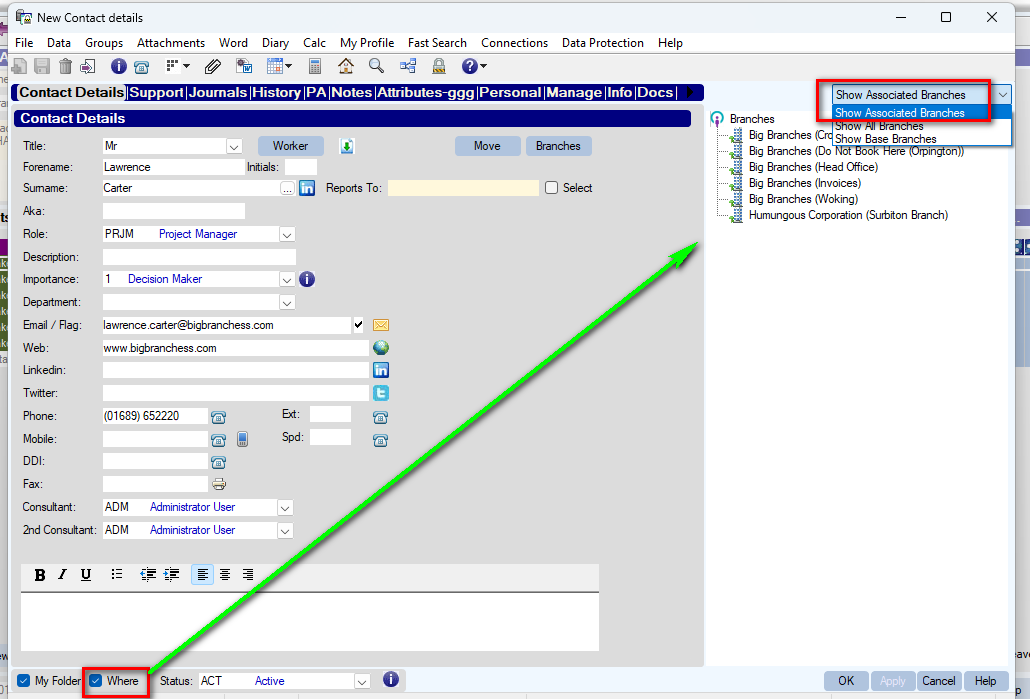
At the bottom left, tick the Where [ ] option.
This will open a panel at the right-hand side. Use the drop-down at the top to show "Associated Branches"
STEP 3:
You can now right-click on the Branch(es) where the contact is based. Choose Base Contact at this Branch or Make Primary Branch
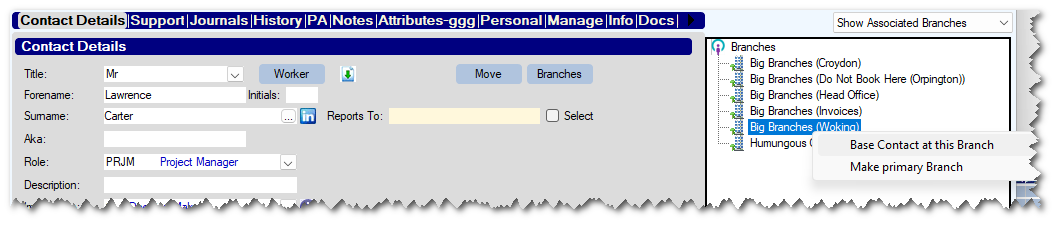
(If you are moving them, you may want to choose "Do Not Base Here" at the branch they have left)
| NOTE: On newer systems there is a [Branches] button which can be used to do the same as the above. For older systems the above method will always work. 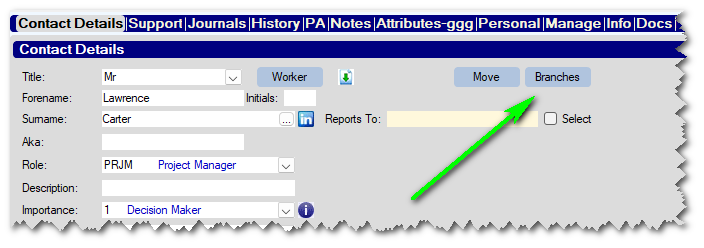 |


Was this article helpful?
That’s Great!
Thank you for your feedback
Sorry! We couldn't be helpful
Thank you for your feedback
Feedback sent
We appreciate your effort and will try to fix the article