This article explains how Influence can be linked to Mailchimp for marketing and mailing purposes.
Mailchimp is an online emailing and marketing tool which can be used for mass communication with your candidates and clients. It is possible to create a Group within Influence and link it to a Tag in Mailchimp. (www.mailchimp.com )
Within Mailchimp any members of the GROUPS are added to your Audience, and assigned the relevant Tag within Mailchimp. People can be in multiple GROUPS within Influence (and hence assigned multiple Tags) but are a single Audience member.
This facility has been added from version 1.00.26.170 or later. To find out more about GROUPS and how to use them, click HERE.
| NOTE: When linking GROUPS to Mailchimp it must be a list of people - so it is only possible to link [Candidates] or [Contacts] Groups. i.e. You cannot create a Group of Companies and set it up as a linked Group - you should instead create a group of the relevant Contacts at those companies instead. |
| INFORMATION In the current implementation (July 2026 ->On ) if you have multiple audiences in Mailchimp, each Influence database can only link to one audience. {This may change in future versions of the product.} |
Contents
TABLE OF CONTENTS
- Overview of Mailchimp Integration
- System Setup
- Using Mailchimp Groups
- How to view Tags in Mailchimp
- Clarifications & Troubleshooting
Overview of Mailchimp Integration
In essence, this is quite easy; there are just a few simple steps.
In order to use Mailchimp you will need to sign up for an account with them. You will also need to contact Influence and arrange to sign up for the Mailchimp integration. Once done you can create GROUPS of contacts in Influence who will be passed to your Mailchimp audience and TAGGED with the relevant GROUP name.
STEP 1
Sign up for an account with Mailchimp (https://mailchimp.com )
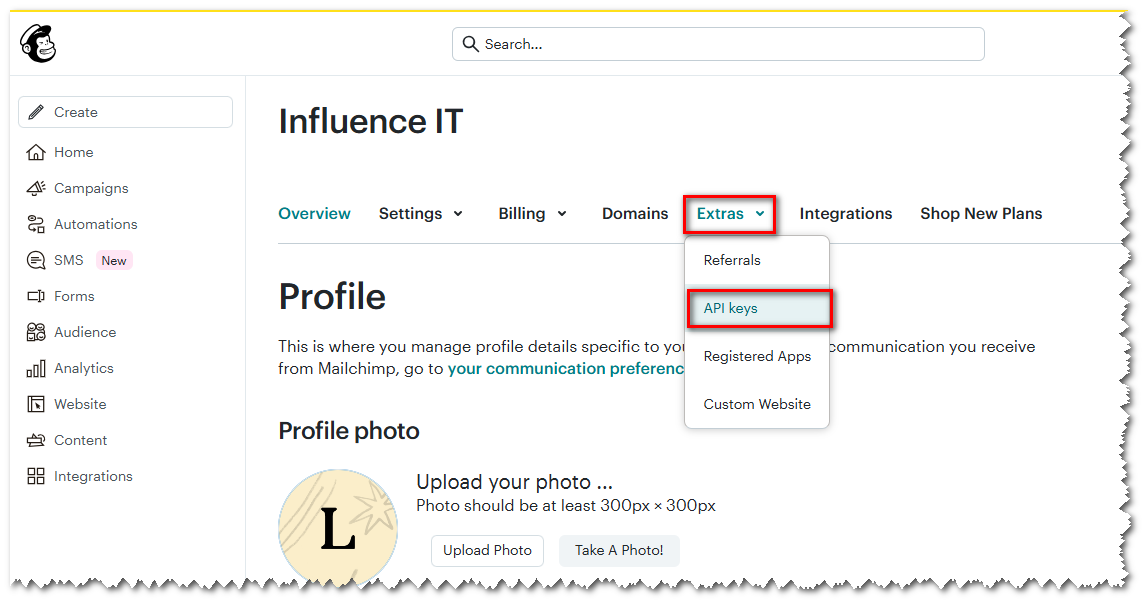
Once you have signed up, get the details of your API Key (Go to your Profile, select Extras and then API Keys - See below.)
STEP 2
Contact Influence and speak to our sales team to add the Mailchimp integration to your Influence subscription. You will need to let us know your API key, as we will need that to setup the link between the two systems.
STEP 3
Once you have purchased the add-on (integration) our support team will get the link setup, and activate the integration.
You can then create GROUPS in Influence and link them to your Mailchimp account. Anyone added to these GROUPS will be automatically added to the Audience in Mailchimp and assigned a TAG.
If anyone unsubscribes using the link on your email campaigns, then they will be unsubscribed from the list in Mailchimp.
{You can optionally remove them from your GROUP in Influence, and/or amend their Contact preferences within the Consent Centre (padlock) in Influence.}
STEP 4
That it! You can now use Mailchimp to send beautiful email campaigns to Tagged candidates/contacts held in your Mailchimp audience.
System Setup
In order to get things working, there are a few pieces of information we will need.
We can then get things setup to ensure that your Influence database and Mailchimp account will link together.
What we need from you . . . .
(As at July 2026, the information can be found as below, but this may change; consult Mailchimp for the most up-to-date info)
| Your Mailchimp API Key You can find your API key in Mailchimp. Go to your profile and select Extras > API Keys. Make a note of the Key and send it to us. | 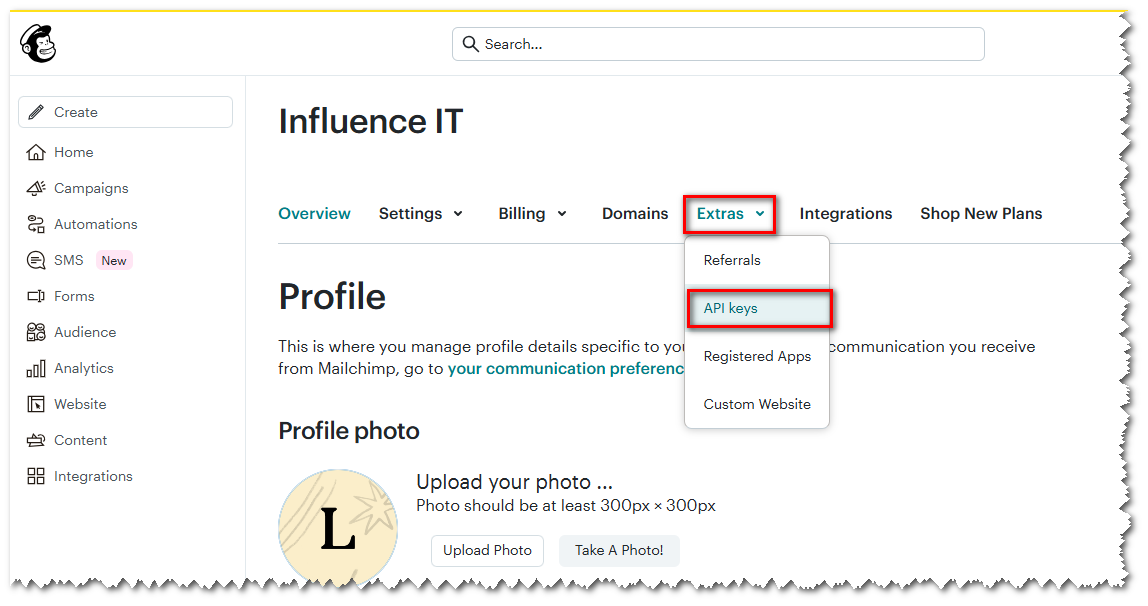 |
| Your Audience ID You can find your Audience ID in Mailchimp. Login and go to Audience. Click the [...] button. Look at the audience Settings and make a note of your Audience_ID Note: At present, if you have multiple audiences, you can only choose one audience to link to each Influence database you have. | 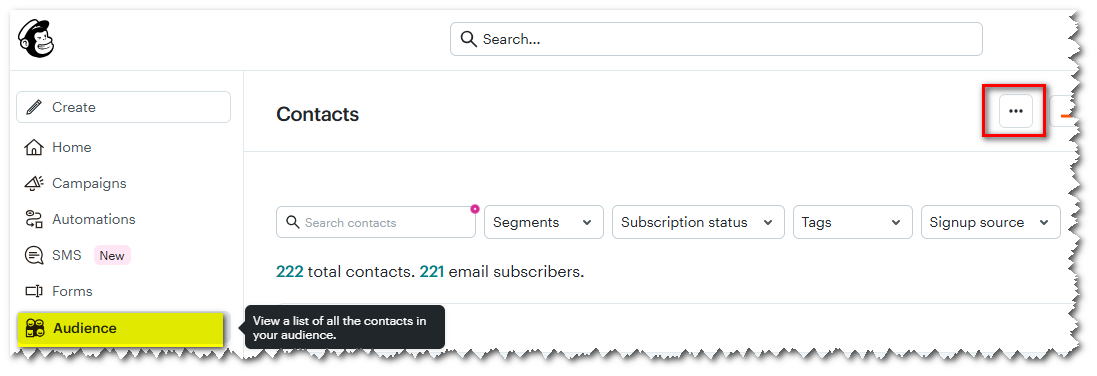 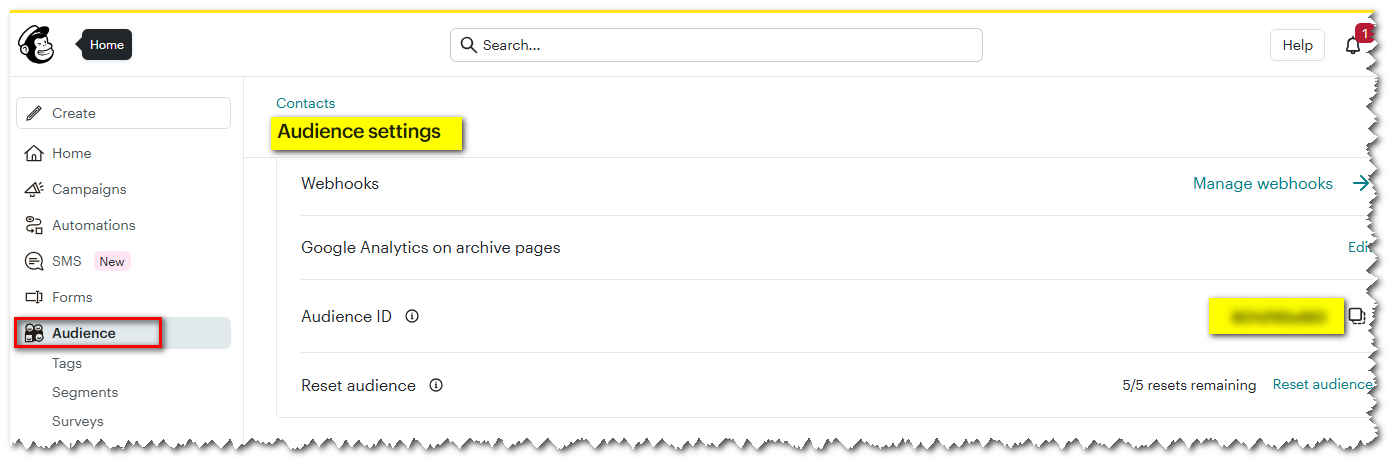 |
| Your Mailchimp server If you look at your API key, this is usually the last few characters, e.g. us16 This can also be seen as the first part of the website/url when logged into your Mailchimp account. | 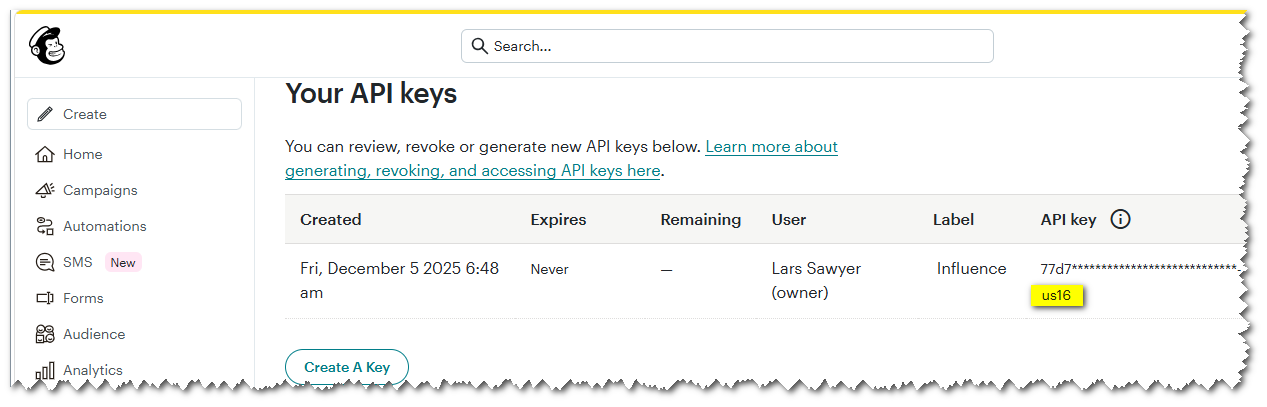 OR OR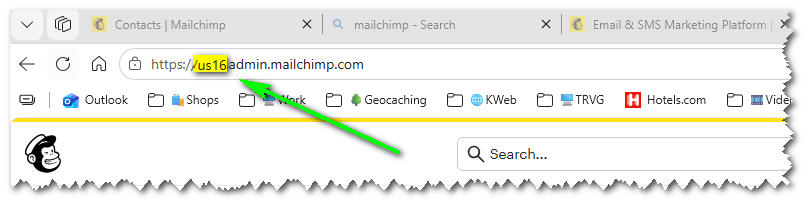 |
| Your Mailchimp User This is simply the user which is entered when logging into your Mailchimp account. | 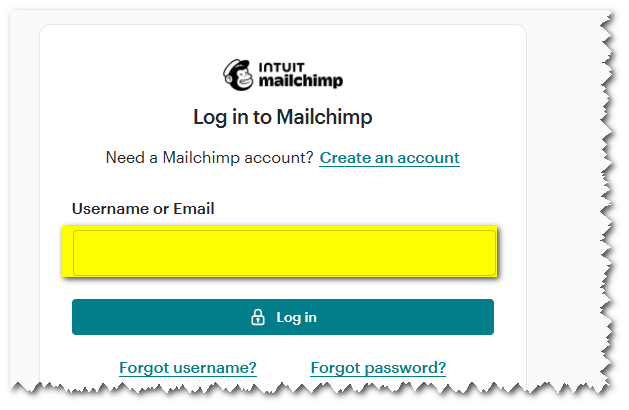 |
Using Mailchimp Groups
Using Mailchimp groups is nice and easy, and is described below.
i) ADDING A MAILCHIMP GROUP
At the left of the workbench, choose "New" or Add to New
Create a new Group exactly like you normally would, but make sure to choose that this will be a Mailchimp Group. {This can be a Group of Candidates/Workers <or> Contacts }
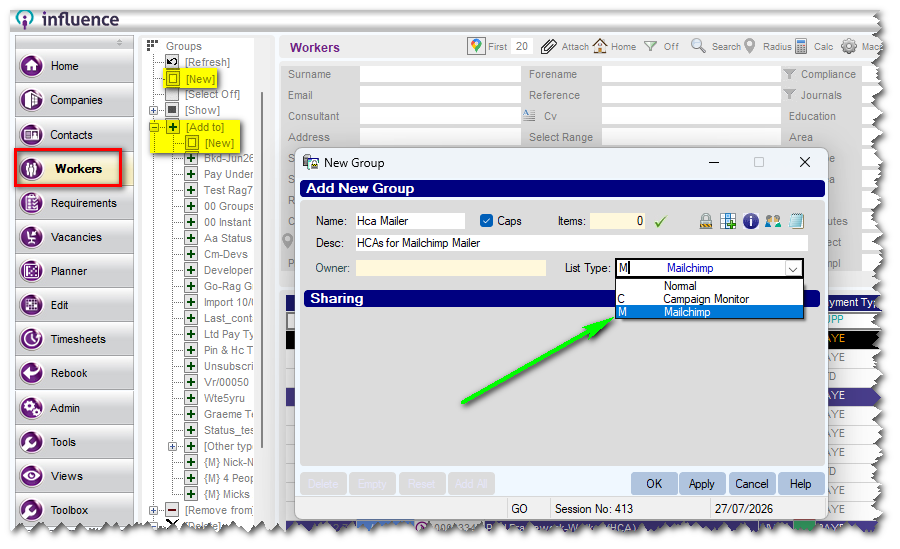 Any people added to the Group will be passed to Mailchimp and TAGGED with the Group Name so they can be found/identified in Mailchimp. e.g. HCA Mailer
Mailchimp groups can be identified from the left-list as they will be displayed starting with {M}
e.g.
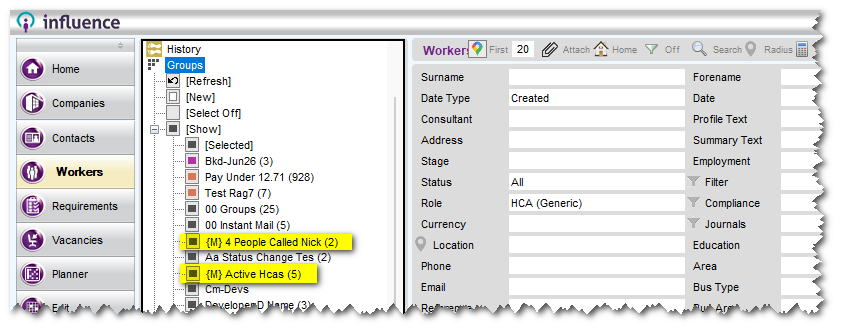
Groups can be created in a variety of ways; as long as the Group is flagged as a Mailchimp group, then any people added to the Group will be passed to Mailchimp and assigned the relevant TAG within Mailchimp.
WAYS TO CREATE A GROUP
- From the left-list at the left of the workbench [Candidates / Contacts]
- From the toolbar within the Macro Manager
- From the GROUPS icon in the toolbar of a candidate/contact
- Using the 'Group Manager'
- From the results of an IQ Report, using the icon in the toolbar.
Essentially, no matter how the Group has been created if it is setup as a Mailchimp group, then all the people will be TAGGED accordingly.
ii) DELETING A MAILCHIMP GROUP
If you no-longer need/want a Mailchimp Group, you can delete the Group as you normally would, using the 'Delete' option in the left-list. Deleting a group in this way will
i) Delete the Group from Influence
ii) Remove the TAGS from all members of the group in Mailchimp
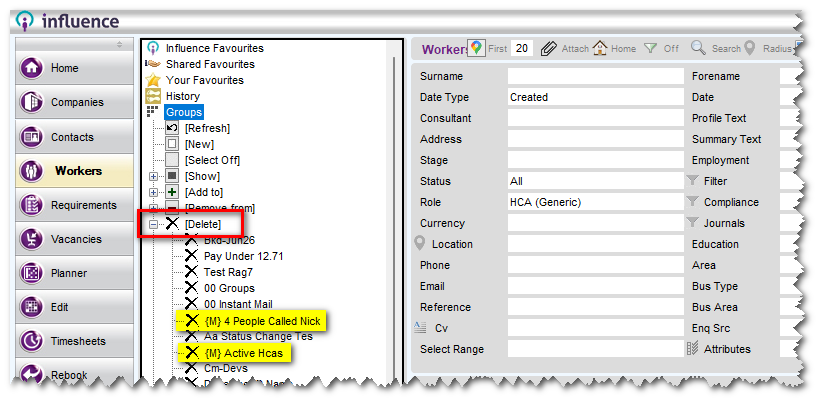
NOTE: The members of the group will remain as contacts in Influence (just not part of the group) and will remain as part of your AUDIENCE in Mailchimp. They will not be deleted from Mailchimp or marked as 'archived' in Mailchimp.
iii) REMOVING PEOPLE FROM A MAILCHIMP GROUP
If you wish to remove people from a Mailchimp group, you can do this in any of the normal ways. the most common way would be to go into the specific person, open the Group Manager from the top of their record and then remove them from the relevant (Mailchimp) Group
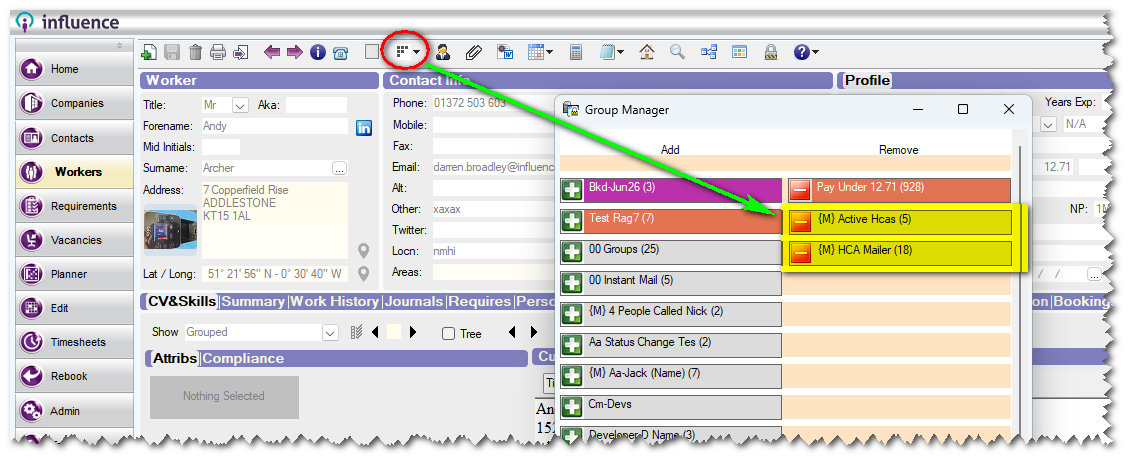
You can also remove people from Mailchimp groups in bulk, by using the Remove From option in the left-list at the side of the workbench [Candidates] /[Contacts]. Anyone on-screen can be removed from the Group.
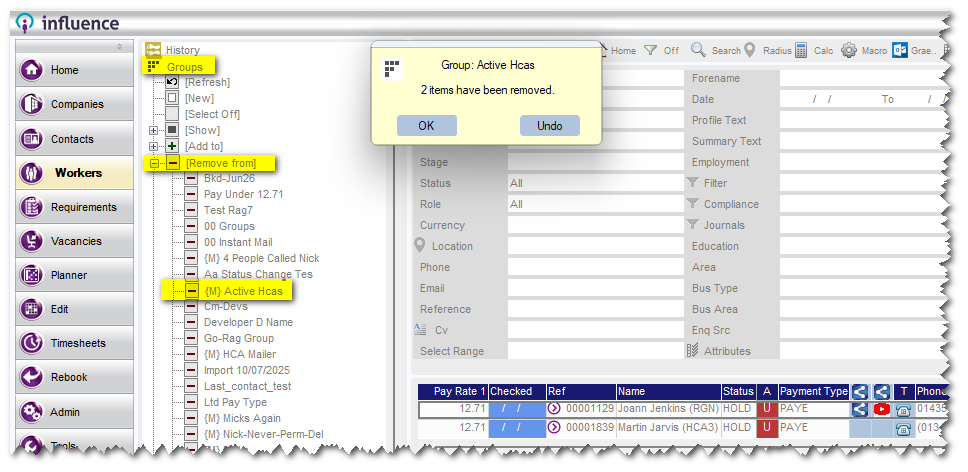
When people are removed from the Group in Influence, they will have the relevant TAG removed from them in your Mailchimp audience.
NOTE: Removing someone from a Group does not remove them from the Audience; they remain as part of the audience, but are 'Un-TAGGED' in Mailchimp.
How to view Tags in Mailchimp
As explained above, Groups within Influence are used to pass people to your Mailchimp account where they are added to the audience, and assigned a TAG that matches your Influence Group name.
These can be seen within Mailchimp by looking at your Tags (See below)
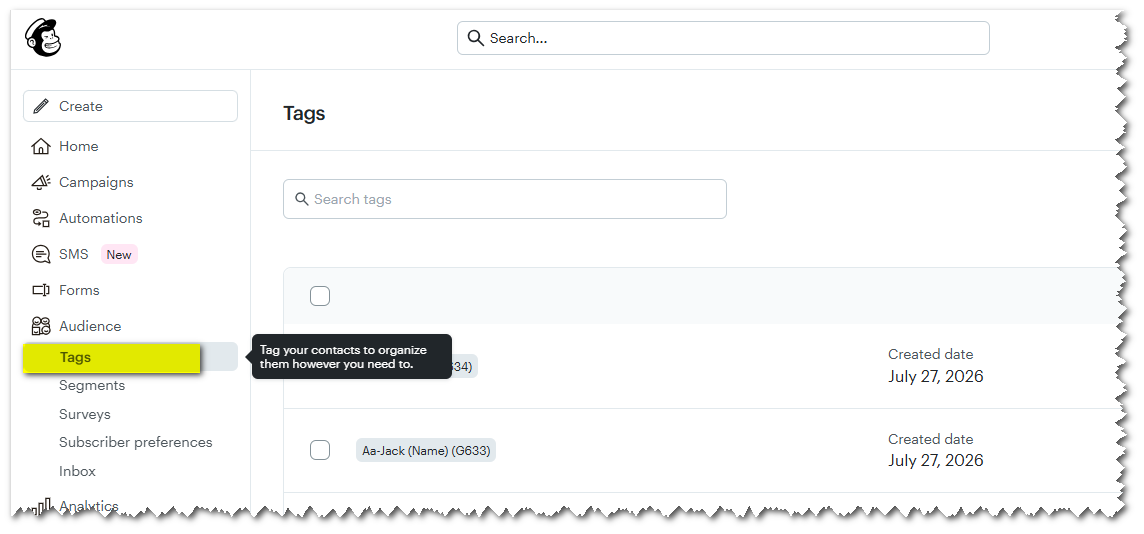
Audience members may be assigned more than one Tag if they are in more than one Group within Influence.
For more information about Audiences, Tags, and sending mailshots, please consult your Mailchimp documentation.
| IMPORTANT Managing Tags within Mailchimp, or removing a Tag from an audience member directly in Mailchimp does not remove them from the Group in Influence. |
Clarifications & Troubleshooting
Sometimes you may encounter messages or issues. The information below is designed to help you understand those issues.
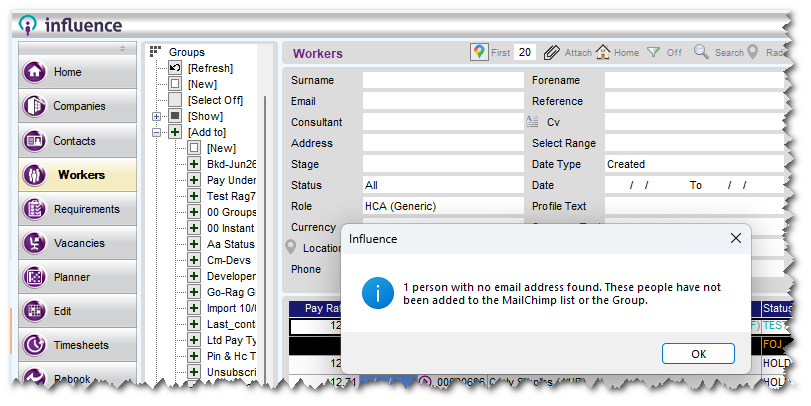
1. People with no email address will not be added to a GROUP
If you try to add someone without an email address to a Mailchimp Group, you will get the following on-screen message.
2. People cannot be added to a Mailchimp GROUP if they have an invalid email or have been Deleted
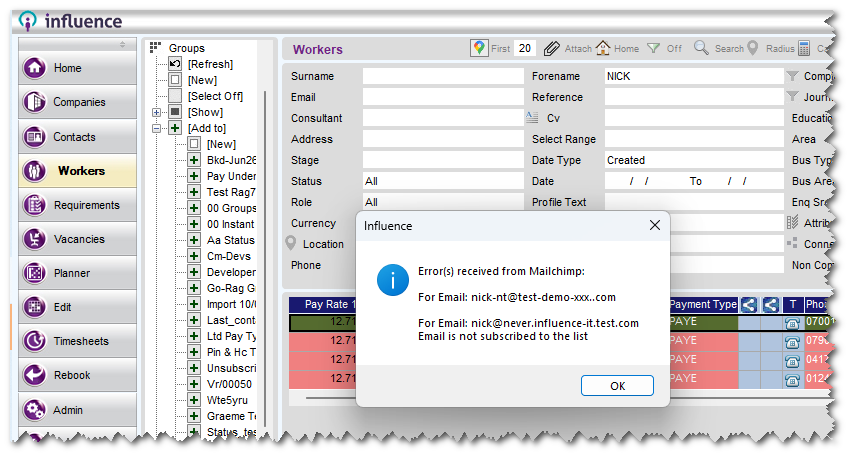
Mailchimp performs some rudimentary checks on the format of email addresses. If you try to add someone without an invalid email address to a Mailchimp Group, you will get the following on-screen message.
{In this case nick-nt@test-demo-xxx..com is not a valid email dues to the two dots.}
If you try to add someone who was previously an audience member in Mailchimp and has been DELETED from your audience, you will receive the following error.
{In this case nick@never-influence-it.test.com has been previously deleted from Mailchimp audience.}
3. People will not be added to a Mailchimp group if they have opted out of e-shots
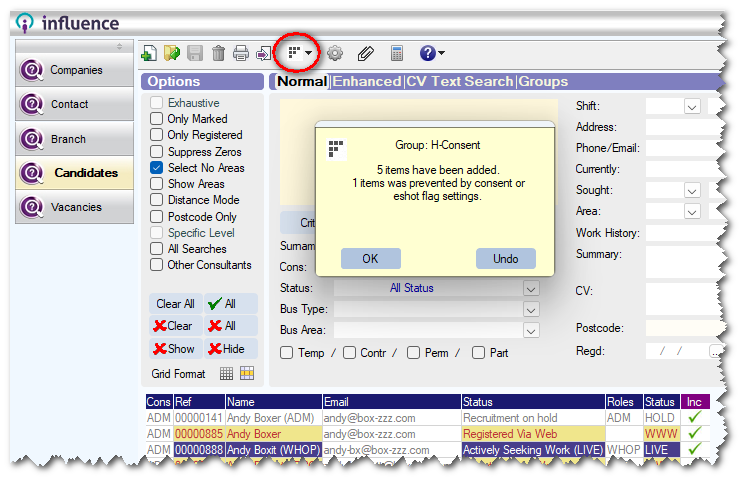
When adding people to a Mailchimp-linked Group, they will not be added to the group if they have opted out of mailshots (either via the consent centre/padlock or via the 'Mailshot [ ]' tick-box on their contact record).
The system helpfully displays a message to that effect when adding people to the Group.
4. Additional Troubleshooting items will be added here.
Additional Mailchimp issues will be added here if found.
Was this article helpful?
That’s Great!
Thank you for your feedback
Sorry! We couldn't be helpful
Thank you for your feedback
Feedback sent
We appreciate your effort and will try to fix the article